

Creating users, assigning licenses, group membership (which can also be leverage for license assignment), and removing users requires many clicks should you leverage the Entra ID portal. It’s not a difficult task, however repeat that times X number of administrative tasks, and you quickly realize that leveraging PowerShell automation can not only accomplish the tasks in seconds but also becomes a standardized and repeatable process that should ultimately be part of an overall provisioning, deprovisioning strategy.
This post is covering the basics of creating a new user, assigning a license sku, adding to a security group, and finally deleting the user.
You will need to have the appropriate permissions to create users, assign licenses, edit group membership and delete users. In an ideal world you need to elevate your permissions with privileged access management, following a zero-trust architecture but that’s for another day!
This post assumes you a policy defined for PowerShell execution policy set to at least RemoteSigned. For testing purposes, as an administrator of the device you can run Set-ExecutionPolicy RemoteSigned.
Verify the policy by running Get-ExecutionPolicy
As with any scripting or syntax you find online, you should always test in a lab environment before running in production!
Creating a New User Identity
Before you start, ensure you’ve installed the AzureAD module and connected to your Azure AD instance. Open a new PowerShell window as administrator and run the following commands. Important note, this does not work in PowerShell Core.
Install-Module -Name AzureAD
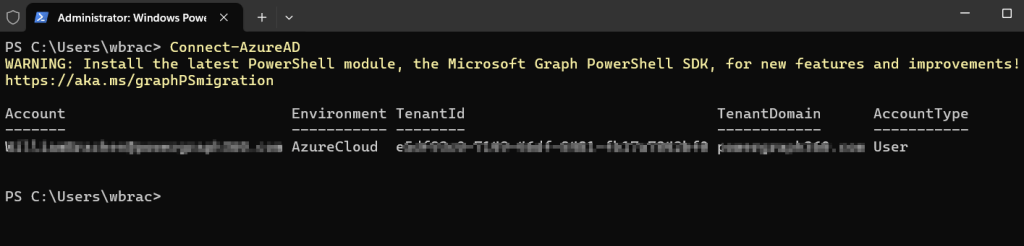
Next, we will connect to our tenant using the following command. If you have multiple tenants, you can add the -TentantId parameter and specify which tentant you want to connect to.
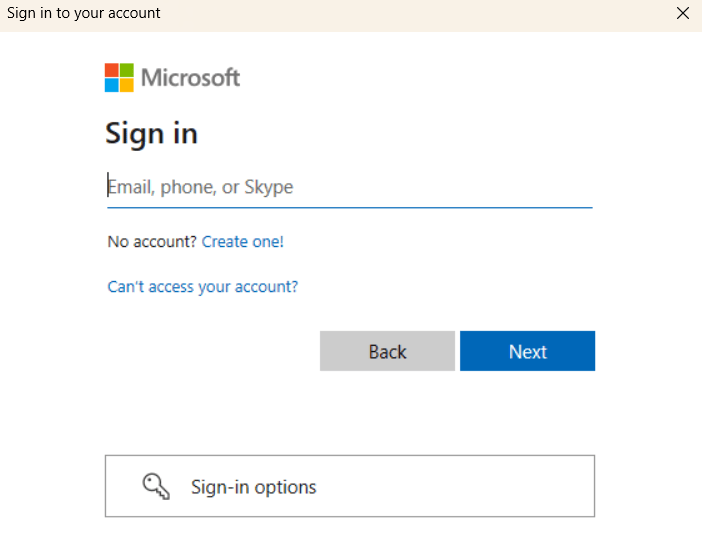
Connect-AzureADYou will be prompted to login. Enter your elevated credentials (hopefully with MFA!) to continue.
You are now connected to your Entra ID tenant.
Create a new passwordProfile object.
$passwordProfile = New-Object -TypeName Microsoft.Open.AzureAD.Model.PasswordProfile

Assign a secure password to the profile that adheres to your organizations policy.
$passwordProfile.Password = "YourSecurePassword!

Enforce a password change upon next sign-in as a general best practice.
$passwordProfile.ForceChangePasswordNextSignIn = $true
Lastly, create the new user, replacing my example names with the identity of your new user. We will assign the new user object to the $user variable so we can leverage it in the next steps.
$user = New-AzureADUser -AccountEnabled $true -DisplayName "Johnny Rose" -PasswordProfile $passwordProfile -MailNickName "johnnyrose" -UserPrincipalName "johnnyrose@rosebudmotels.com"

The new user is now created in Entra ID.

Assign a License to the User
Finding and Assigning Licenses:
You can retrieve the available licenses with
Get-AzureADSubscribedSku
Assign a license to the $user using the skuId of the license you wish to assign.
$skus = Get-AzureADSubscribedSku $skuId = $skus[0].SkuId # Adjust index [0] based on the desired SKU from the list.
$license = New-Object -TypeName Microsoft.Open.AzureAD.Model.AssignedLicense
$license.SkuId = $skuId
$licensesToAssign = New-Object -TypeName Microsoft.Open.AzureAD.Model.AssignedLicenses
$licensesToAssign.AddLicenses = @($license)
Set-AzureADUserLicense -ObjectId $user.ObjectId -AssignedLicenses $licensesToAssign
The license is now assigned!
Assign User to Groups
First, create a $group object for the group you want to make $user a member of.
$group = Get-AzureADGroup -SearchString "GroupName"
Add the user to the group.
Add-AzureADGroupMember -ObjectId $group.ObjectId -RefObjectId $user.ObjectId
Delete a User Identity
To delete a user, you must first retrieve the user object.
$userToDelete = Get-AzureADUser -SearchString "johnnyrose@rosebudmotels.com"
You can now remove the user:
Remove-AzureADUser -ObjectId $userToDelete.ObjectId
Tips
- For user creation: Ensure you prepare a secure password and decide whether the user must change it on the first sign-in.
- For assigning licenses: Know the SKU ID of the license you want to assign. If you’re managing multiple licenses, iterate over them as needed.
- For adding to groups: Have the group’s
ObjectIdready or know the group’s display name to find or create it. - For deletion: Always identify the user with their
UserPrincipalNameor another unique attribute to retrieve theirObjectIdbefore deletion. - Scripting and Automation: Encapsulate repetitive tasks into functions or scripts for efficiency and error handling.
- Security and Compliance: Always adhere to your organization’s security policies, especially when handling credentials and user data.
- Documentation and Learning: Microsoft’s documentation is a valuable resource for understanding parameters and command options in-depth.
 MS Endpoint Security
Leave a comment