

The EnhanceSecurityMode policy in Microsoft Edge, when set to “Balanced” is designed to provide a balanced level of security and usability. This setting adjusts the security features in Edge to enhance protection against potentially harmful sites and content, while still allowing for a relatively unrestricted browsing experience for websites that are considered safe. Here’s a breakdown of what happens when you set the EnhanceSecurityMode to “Balanced”.
SmartScreen Filter: The SmartScreen filter is more aggressively used to protect against phishing and malware websites. It checks the websites you visit and the files you download against a database of known unsafe web locations.
Isolated Browsing: Websites that are not recognized as safe might be isolated to prevent any malicious code from affecting the system or accessing user data. This can include running untrusted sites in a more restricted process environment.
Blocking Untrusted Fonts: The Balanced mode may block untrusted fonts being loaded from websites, which is a technique sometimes used in web-based attacks.
Strict Cookie Management: Cookies might be managed more strictly, with a preference for blocking third-party cookies or only allowing cookies from sites you interact with directly.
Content Blocking: Potentially dangerous content, such as scripts or downloads from untrusted sources, may be blocked more aggressively.
Reduced Site Permissions: Sites might have reduced permissions by default, requiring user intervention to allow actions like accessing the microphone, camera, or location.
Increased Privacy Protections: Enhanced security mode may also include increased protections against tracking and fingerprinting techniques used by advertisers and malicious entities.
Extension Restrictions: Extensions from sources other than the Microsoft Edge Add-ons store might be restricted or subjected to additional scrutiny.
Let’s take a look at how to configure and deploy a Balanced EnhanceSecurityMode configuration profile.
Create the configuration profile
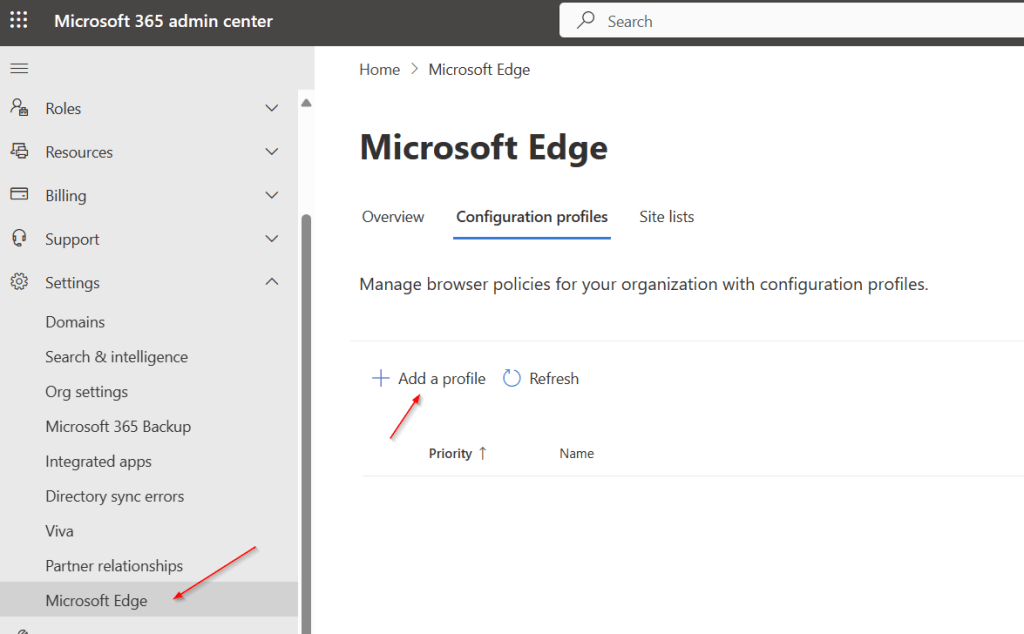
Navigate to https://admin.microsoft.com.
Expand Settings and click on Microsoft Edge.
Select the Configuration profiles tab and click Add a profile.
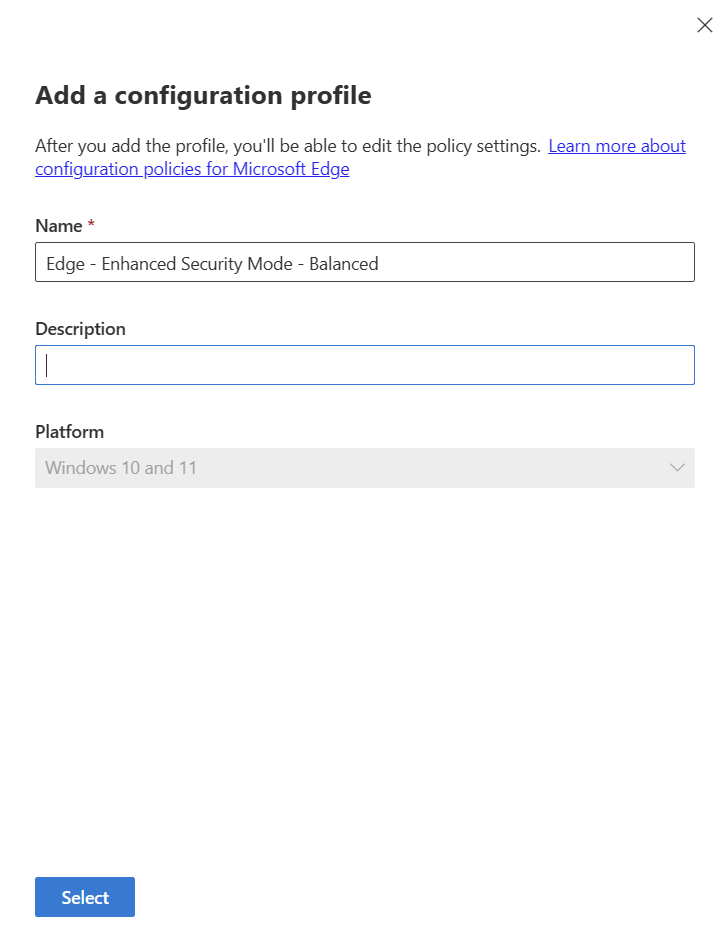
Provide a relevant name based on your organizations naming standards and click Select.
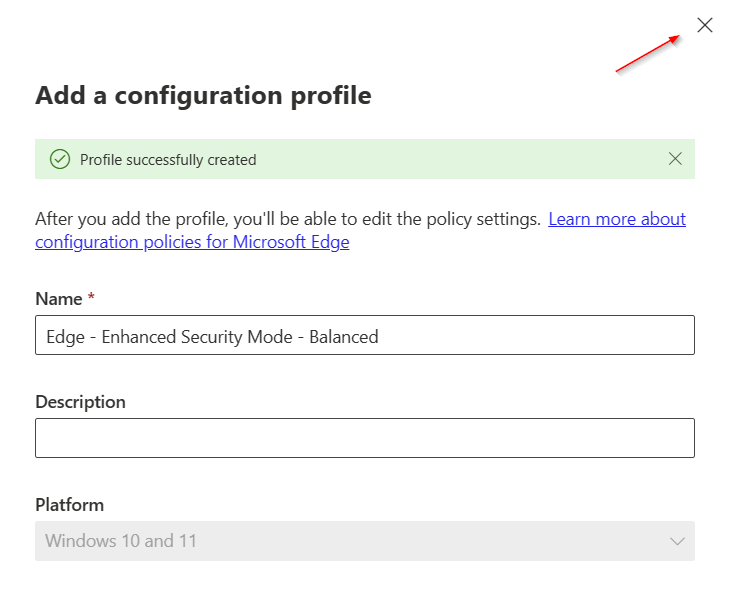
Once you see “Profile successfully created” click the X to close the dialog.
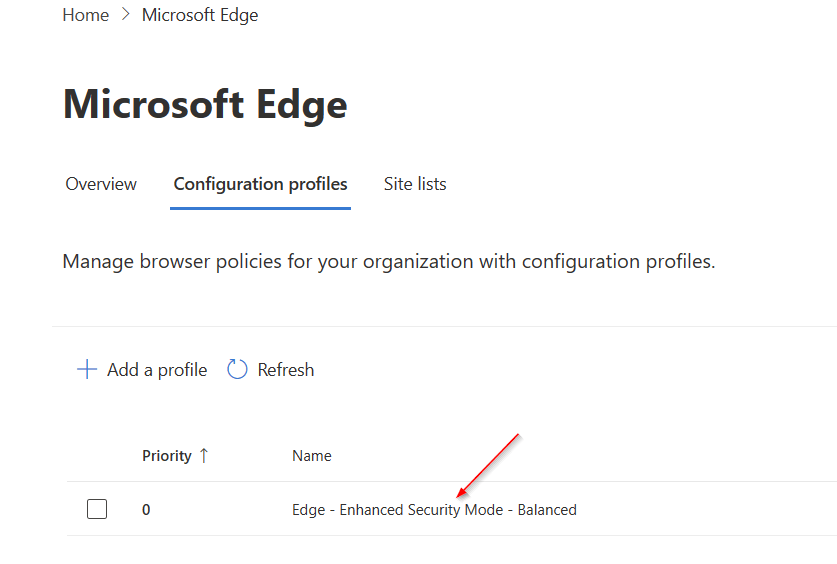
Click the new profile you just created.
Click Select policy.
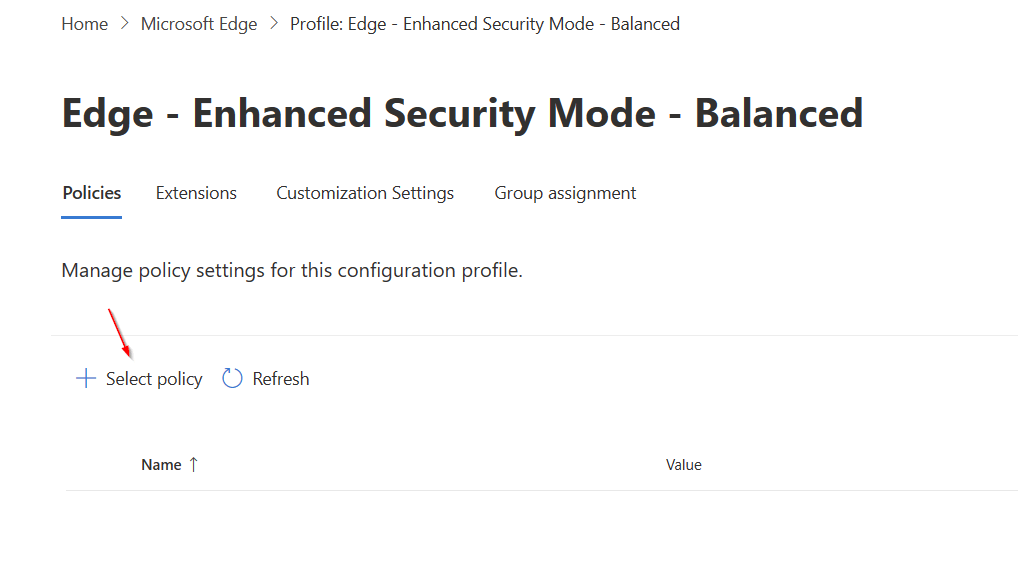
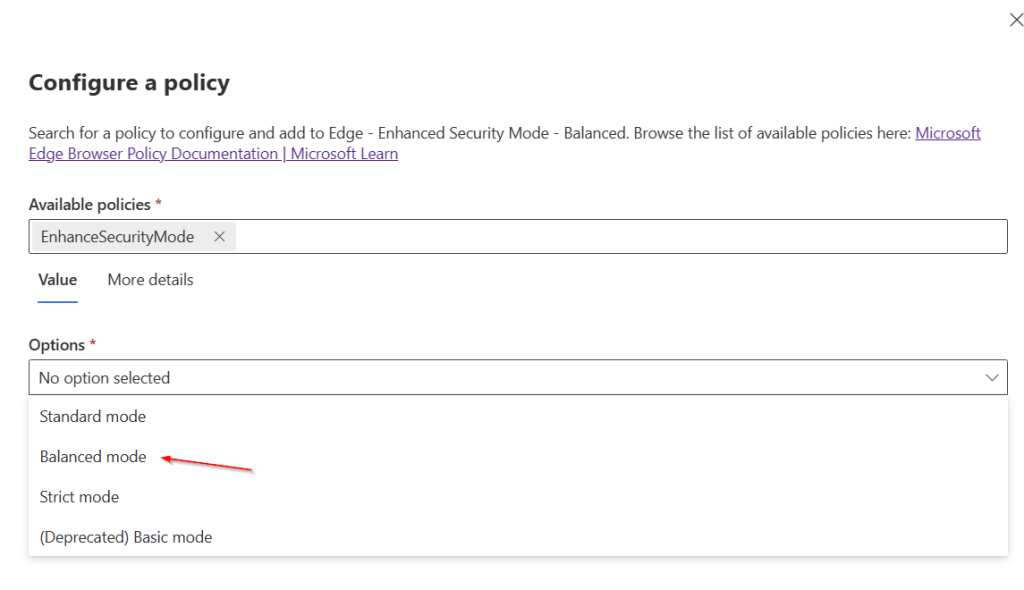
In the “Available policies”, start typing EnhancedSecurityMode and select it when it appears. There are (as of this post) 4 Options to choose from, albeit one is being deprecated and will not work on newer browser versions.
Read more about this here: https://learn.microsoft.com/en-us/deployedge/microsoft-edge-policies#description-329
Select Balanced mode in the Options dropdown.
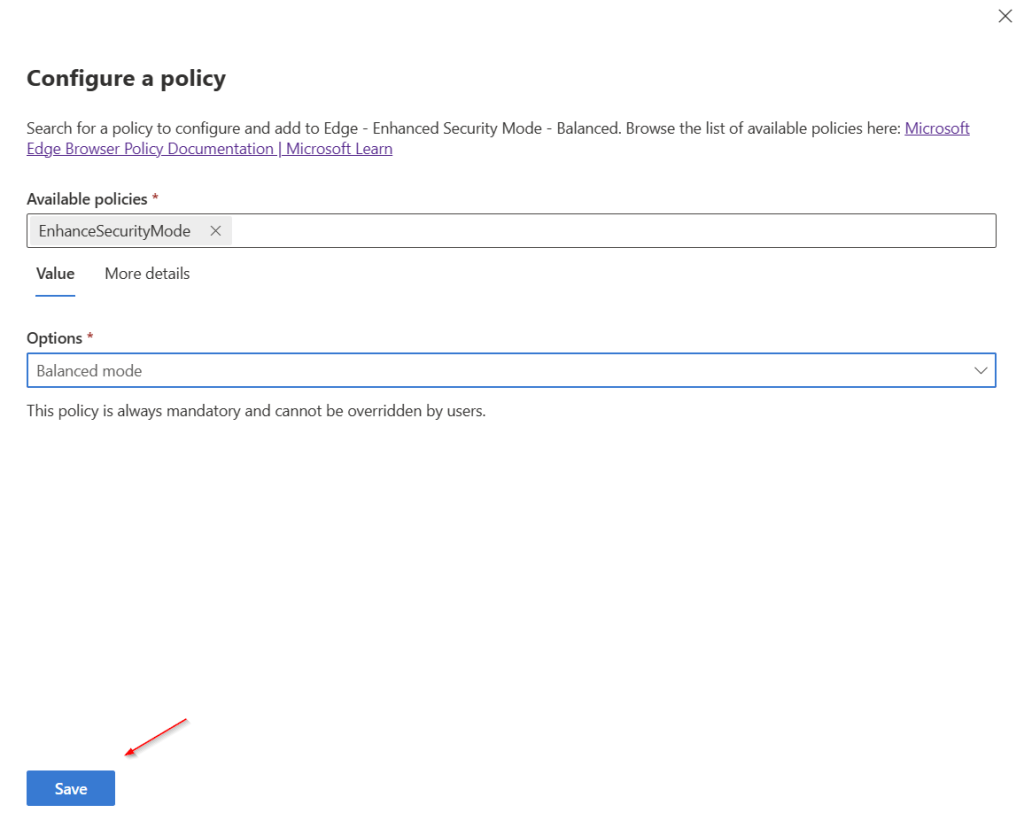
Click Save.
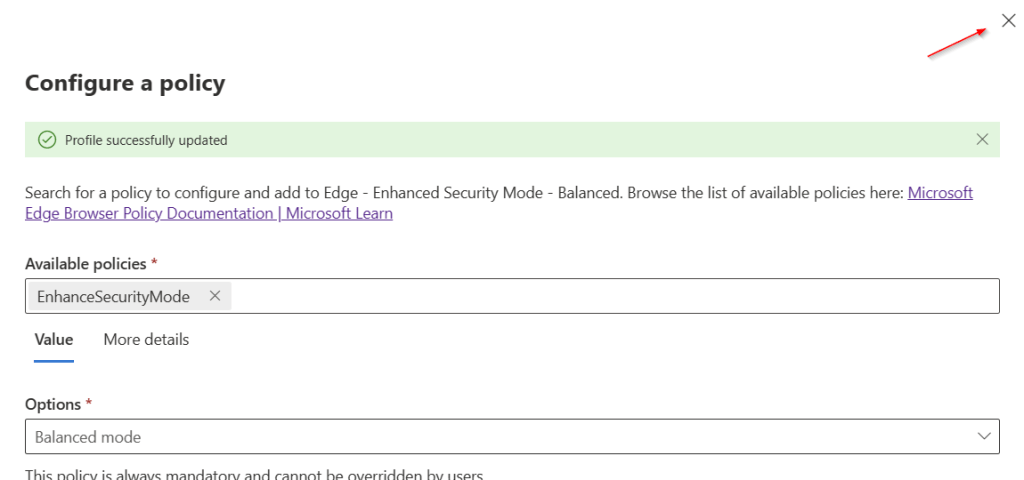
Once the profile is successfully updated click the X to close the dialog
Deploy the policy for testing
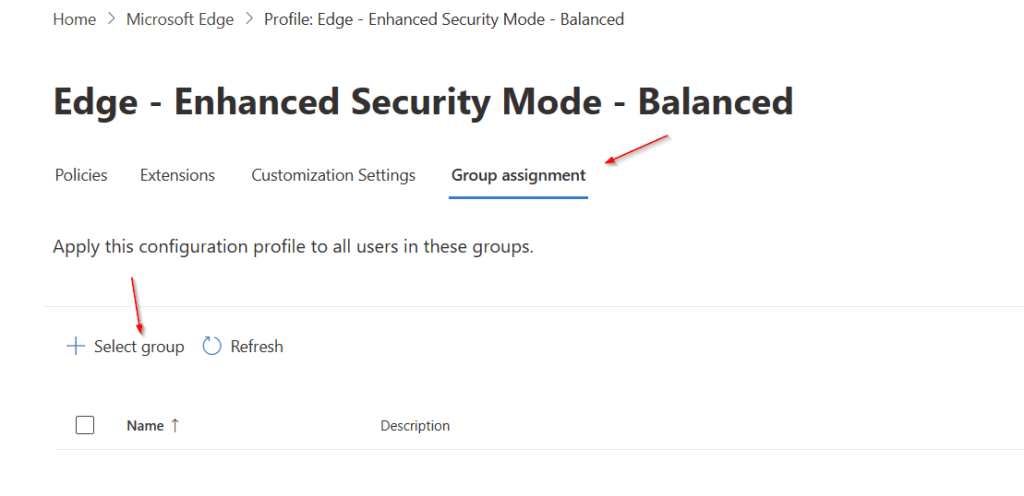
Click the Group assignment tab then click Select group.
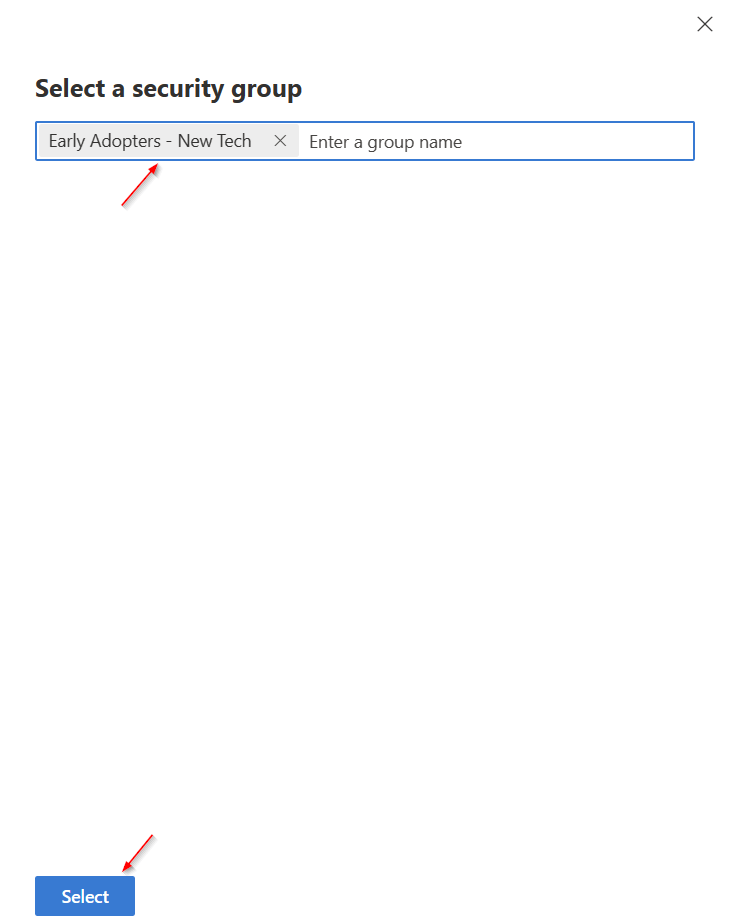
Start typing the name of the group you wish to deploy the policy then click Select.
As with ALL new configuration changes, you should start with early adopters or test users to ensure the experience is what you’re expecting, then gradually roll out, monitoring each phase for any issues.
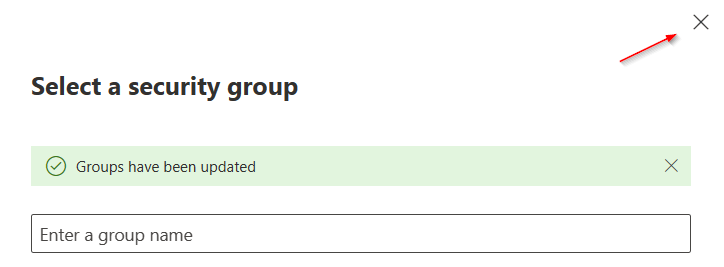
Once the Group assignment has been updated, click the X to close the dialog.
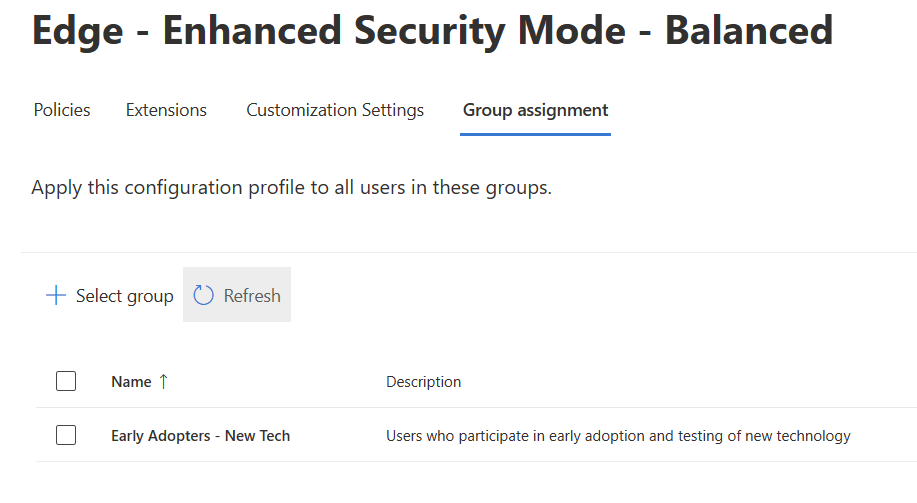
The new Edge policy for Balanced Enhanced Security Mode has been deployed.
Verify the policy has been applied
The policy should take effect in about an hour, but you should allow up to 24 hours for it to propagate completely.
Login to the device as one of the assigned users.
Open Microsoft Edge and click the ellipses button. Once the policy is applied you should see “Managed by your organization”. Click to get additional information.
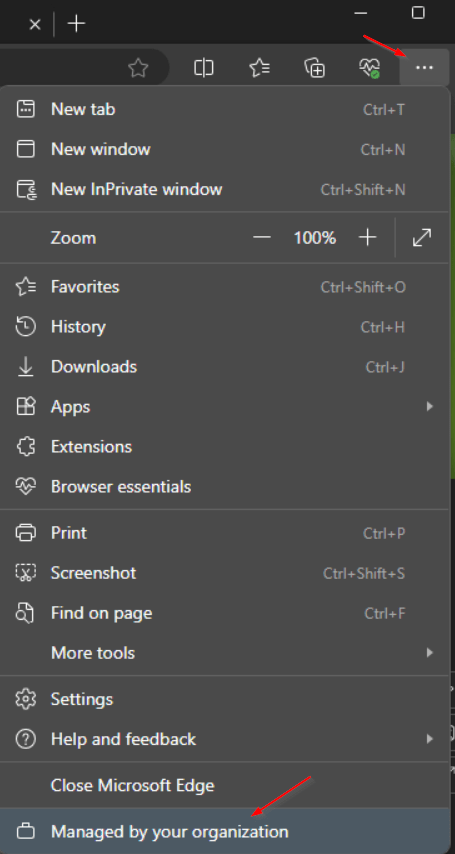
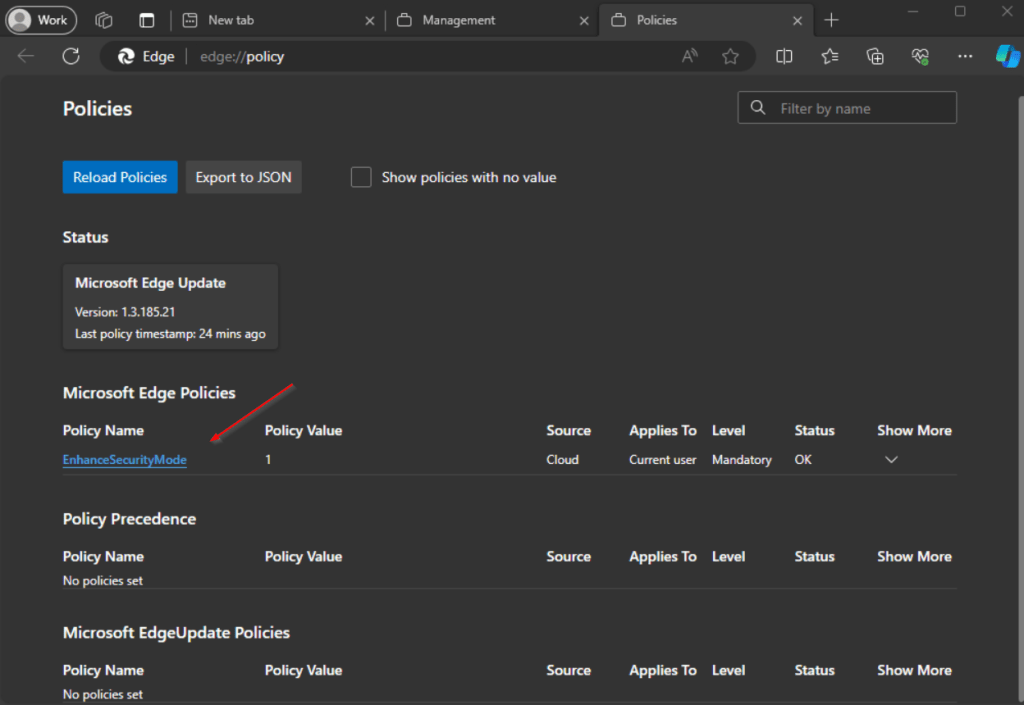
Now you can click the edge://policy to open the policies page.

The new policy we created shows up under Microsoft Edge Policies.
Next steps would be to start thoroughly testing all internal and external URLs that you leverage for all business activities. Once your initial “smoke test” is complete without issues, expand the scope to pilot and include representatives from each department. Monitor/solicit feedback for any issues. If no issues, expand the pilot to include more users. When satisfied there is no negative impact to operations, deploy to all remaining users.
There are hundreds of policies you can deploy for Microsoft Edge. This is but one small example. I encourage you to experiment with these policies to get Microsoft Edge to the state that is right for your organization, finding the right balance between security and usability.
Until next time!
 MS Endpoint Security
Leave a comment