

If you are managing an Intune environment, you will almost certainly run into a situation where a deployed application will show as a failure. This could be due to a number of different issues from invalid detection methods (generally the app gets installed but is not able to be detected, thus throws an error) or command lines that all malformed that cause the installation to fail. You can glean information from the Intune portal, however sometimes you may need to troubleshoot at the client level. This quick post discusses the ways you can do this.
Checking Deployment Status
To check the deployment status of a Win32 app, you can use the Company Portal app (which you are hopefully deploying to all Intune managed devices) or the Intune Management Extension (IME) log files located on the client device. The IME is installed as part of the Win32App deployment process and is the main service that manages Win32App installs. These resources provide valuable information on the deployment process’s progress and outcome.
Company Portal
The Company Portal is the first place to check for an app’s deployment status. It provides a user-friendly interface showing the available, installed, and failed apps, along with any associated error messages. This does have its limitations as you only get exit codes.
Intune Management Extension Log Files
For a more detailed analysis, the IME log files on the client device offer a deep dive into the deployment process. The primary log file to check is:
- IntuneManagementExtension.log: Located in
C:\ProgramData\Microsoft\IntuneManagementExtension\Logs, this log file contains detailed information on the app deployment process, including download, installation, and any errors encountered.
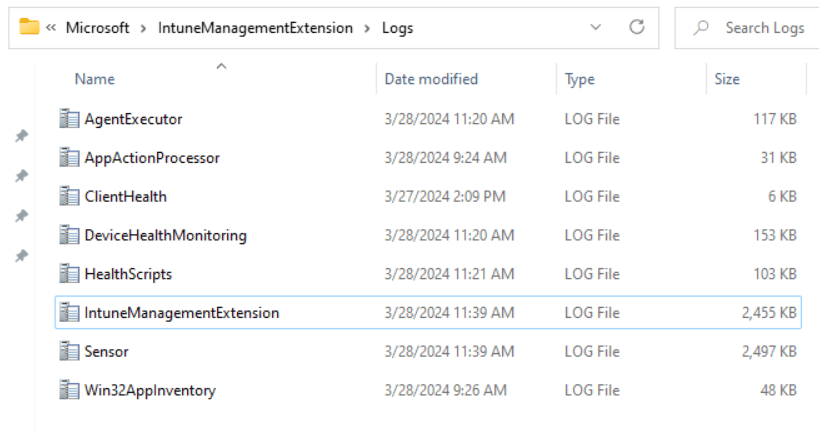
The IntuneManagementExtension.log can be your friend in this scenario. If you have worked with Configuration Manager in the past you will know that log files often contain a plethora of data written to log files. Intune is no exception! As with CM logs, it takes a bit to understand the intricacies of what you can safely ignore and find the data you actually care about. The more you review the logs while things are happening on the device, the more you will find the lines you care about and the lines to skip past.
I highly recommend levering a log file viewer like CMTrace as it can be quite cumbersome in an app like Notepad.
Example of the IntuneManagementExtension.log using CMTrace.exe

Understanding Error Codes
When a deployment fails, the Company Portal or the IME log files will provide an error code. These codes are crucial for pinpointing the issue. Microsoft’s documentation offers a comprehensive list of error codes and their meanings, but here are a few common ones to be aware of:
- 0x87D1041C: This error indicates that the installation failed because the app requires a reboot from a previous installation.
- 0x80070002: Signifying that the system cannot find the file specified, this error often occurs when the app content is not downloaded correctly.
- 0x87D00324: This code means that the app is not applicable to the device, possibly due to the detection rules or requirements not being met.
Best Practices for Troubleshooting
- Verify Requirements and Detection Rules: Ensure that the device meets the app’s requirements and that your detection rules accurately reflect the app’s installed state.
- Check Network Connectivity: Confirm that the device has a stable network connection to download the app content from Intune.
- Review Log Files: Analyze the IntuneManagementExtension.log file for detailed error messages and codes that can guide your troubleshooting efforts.
- Test on a Subset of Devices: Before rolling out broadly, deploy the app to a small group of devices to catch and resolve any issues early in the process.
Conclusion
While deploying Win32 apps through Intune is highly efficient, encountering errors during the process is not uncommon. By understanding how to check the deployment status and interpret error codes, you can quickly address issues, ensuring a seamless application delivery experience.
 MS Endpoint Security
Leave a comment