

We recently launched an initiative to free up additional space on endpoint devices, especially for those with fairly small disks. Primarily, we focused on cleaning up old profiles and flushing out temp directories.
In many cases, a significant portion of the disk space was occupied by locally synced OneDrive files (utilizing Files On-Demand, of course). We began exploring methods to clean this up without affecting the files stored in OneDrive online.
As an example, I copied a full Windows 11 WIM file to my OneDrive and waited for it to sync locally. As shown below, after syncing the WIM, my available disk space dropped to 86GB.
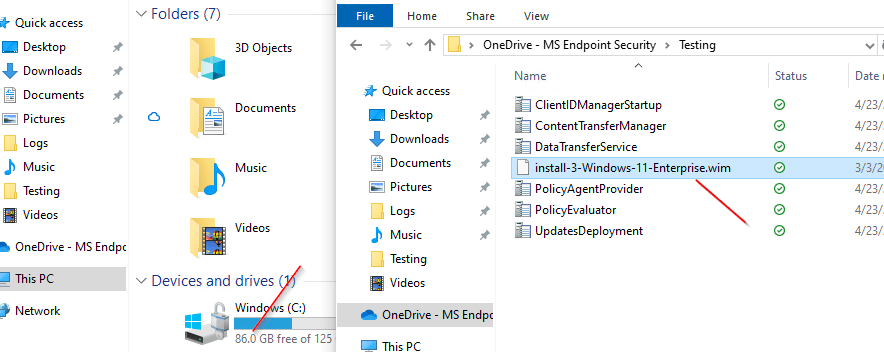
Now, let’s say this file hasn’t been accessed for more than 90 days (or whatever your threshold would be). Probably a better than likely chance I really don’t need the file on my local cache so how do I convert it back to Online only, freeing up the local cached space on my drive?
The solution
It’s shockingly simple. Change the file attributes! In this example we are using the attrib command, but you could do the same using PowerShell cmdlets.
For beta testing purpose I ran the following command manually at a PowerShell admin prompt to verify it does what I think it should do.attrib +U -P <file>
You can see the file now shows the Status as Online only.

And my disk space has increased by 5 GB.
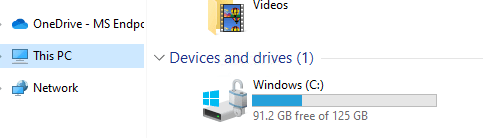
I disconnected the network from the device and attempted to access the file. As expected, I was denied access because the file was inaccessible. I reconnected the network, and this time when I accessed the file, it was redownloaded, again as I would expect.
Putting it all together
Here’s a quick PowerShell script I came up with that will look for any profile containing a OneDrive subdirectory, parse through the files, and convert anything not accessed in the last 90 days to Online only. This could be setup as a remediation script in Intune, or a recurring deployment in SCCM.
# Set root path
$rootFolderPath = 'C:\users'

# Get profiles with OneDrive folder
$subFolders = Get-ChildItem -Path $rootFolderPath -Directory | Where-Object {$_.GetDirectories() -match "OneDrive" }
foreach ($subfolder in $subfolders) {
    $folderPath = "$($subfolder.FullName)"
    $currentDate = Get-Date

    # Threshold
    $threshHoldDate = $currentDate.AddDays(-90)

    # Get all files in the folder and its subfolders
    $files = Get-ChildItem -Path $folderPath -Recurse -File

    # Iterate through each file and retrieve the last accessed date
    foreach ($file in $files) {
        $lastAccessedDate = $file.LastAccessTime
        If ($lastAccessedDate -le $threshHoldDate) {
            attrib +U -P $file.FullName
        }
    }
}
As with any script you find online, ensure you fully understand the implications and always test in a non-production environment!
Hope someone else finds this useful. 🙂
 MS Endpoint Security
Leave a comment